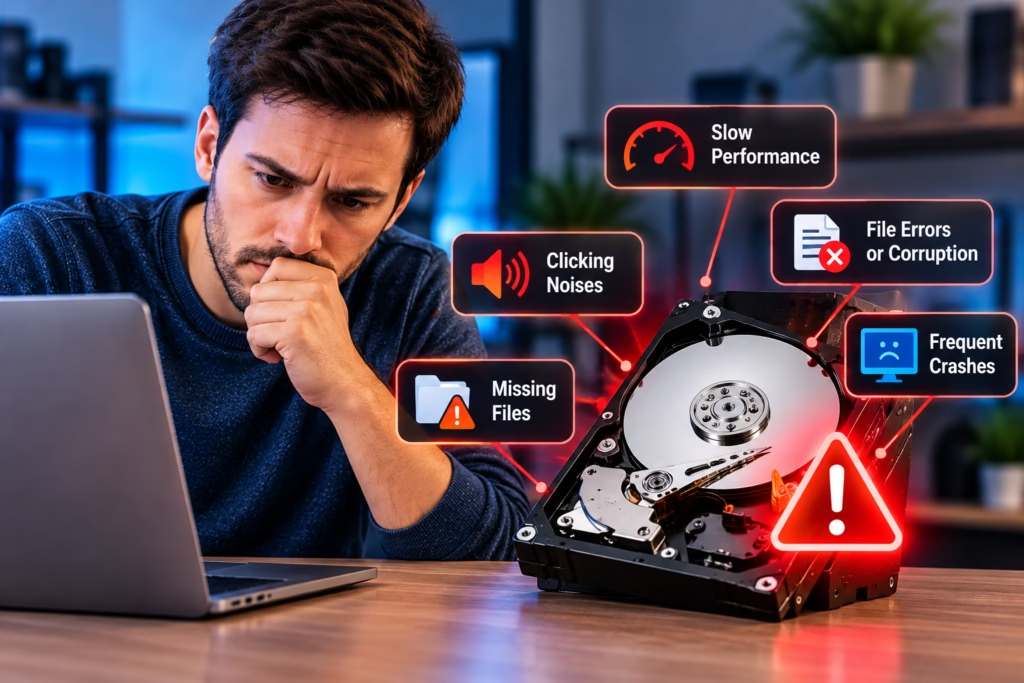
A hard drive can fail gradually or stop working with very little warning. Slow file access, clicking sounds, corrupted folders, repeated disk errors, or a drive that disappears from the computer can all point to trouble. The challenge is that some of these symptoms can also come from cables, software, file-system problems, or other hardware.
If important files are stored on the drive, the safest response is to treat new or worsening symptoms seriously. Steve’s Computers provides data recovery in San Antonio for hard drives and other storage devices that are failing, damaged, or no longer accessible.
Why Hard Drives Fail
Traditional hard disk drives contain moving parts, including spinning platters and read/write heads. Mechanical wear, impact, electrical problems, overheating, controller failure, and media damage can all affect reliability.
Some drives fail after years of use, while others are damaged by a drop or power event. There is no reliable way to predict exactly when an individual drive will stop working. That is why backups matter even when a drive appears healthy.
Unusual Clicking, Grinding, or Repeated Spin-Up Sounds
A mechanical hard drive normally makes some sound while operating, but new clicking, grinding, repeated spin-up attempts, or other unusual noises can indicate a physical problem.
If a drive begins making abnormal sounds and files are important, avoid repeatedly restarting the computer or reconnecting the drive to see whether it recovers. Continued operation can place additional stress on damaged mechanical components.
Not every sound means the drive is failing, and silent drives can fail too. Noise is one clue that should be considered with the drive’s other symptoms.
Files Take Much Longer to Open or Copy
A failing hard drive may become unusually slow when opening folders, copying files, starting applications, or booting the operating system. The computer may appear to freeze while it waits for the drive to respond.
Slow performance alone does not prove that the drive is failing. Low memory, malware, software problems, or other hardware issues can create similar symptoms. However, sudden storage-related slowdown combined with errors, corrupted files, or disconnects deserves closer attention.
Corrupted Files and Folders Can Be a Warning Sign
Files that suddenly refuse to open, folders that become unreadable, or documents that appear corrupted can indicate problems with the file system or the physical drive.
Corruption can also result from improper shutdowns, software errors, or power loss, so it should not automatically be blamed on hardware failure. If corruption becomes frequent or appears alongside other drive symptoms, the risk is higher.
Avoid saving new files to a drive that may be failing because new writes can complicate recovery when important data is already at risk.
The Drive Disappears or Is Not Detected
A drive that appears normally one moment and disappears the next may have a connection problem, controller fault, power issue, or internal failure. External hard drives can also be affected by damaged USB cables or enclosure electronics.
If the operating system asks you to initialize, format, or erase a drive that previously contained important data, do not approve the change before deciding whether the files need to be recovered. Formatting can alter information needed for recovery.
SMART Warnings and Disk Errors
Many hard drives record health information through SMART, or Self-Monitoring, Analysis and Reporting Technology. A warning from the computer or diagnostic software can indicate that the drive has recorded conditions associated with increased failure risk.
SMART data can be useful, but it is not a perfect prediction system. A drive can fail without an obvious warning, and a warning does not tell you exactly how much time remains.
Repeated read errors, bad-sector warnings, or disk-check problems should be treated as reasons to protect important files and have the drive evaluated.
Frequent Freezes, Crashes, or Startup Problems
Because the operating system and applications depend on storage, a failing drive can sometimes cause the entire computer to freeze, crash, or take an unusually long time to start.
Startup problems may also come from memory, software, power, or motherboard issues. Steve’s Computers uses computer diagnostics to distinguish storage failure from other causes before recommending repair or replacement.
Should You Run Data Recovery Software Yourself?
Recovery software can be useful for some logical data-loss situations, such as accidentally deleted files on an otherwise healthy drive. It is not appropriate for every failing hard drive.
If the drive clicks, disconnects, freezes the computer, becomes extremely slow, or cannot stay detected, repeated scans may increase the amount of time the failing hardware has to operate. Installing software or recovering files back to the same drive can also overwrite data.
When the files matter, the condition of the drive should determine the recovery approach.
What Is Different About SSD Failure?
Solid-state drives do not have spinning platters or mechanical read/write heads, so they usually do not produce the same clicking or grinding warnings as hard drives. SSD problems can appear as sudden disappearance, read errors, file corruption, boot problems, or complete failure.
Steve’s Computers provides SSD and NVMe data recovery as well as hard drive data recovery, because the failure modes and recovery methods can differ between storage technologies.
What Should You Do If You Suspect Hard Drive Failure?
If possible, stop unnecessary use of the drive and avoid writing new data to it. If the drive is still stable and you already have a current backup, you may be able to replace the drive before it fails completely.
If the only copy of important files is on the affected drive, prioritize the data before repair, formatting, or reinstalling the operating system. The more valuable the files are, the less sense it makes to keep experimenting with an unstable drive.
Get Hard Drive Data Recovery in San Antonio
If your hard drive is clicking, disappearing, slowing down, showing errors, or preventing access to important files, Steve’s Computers can evaluate the storage device and explain the available options.
Steve’s Computers provides hard drive data recovery and broader data recovery services in San Antonio for failing, damaged, and inaccessible storage devices.
Do not wait for a drive with worsening symptoms to fail completely. Contact Steve’s Computers before repeated restarts, formatting, or continued use puts important data at greater risk.