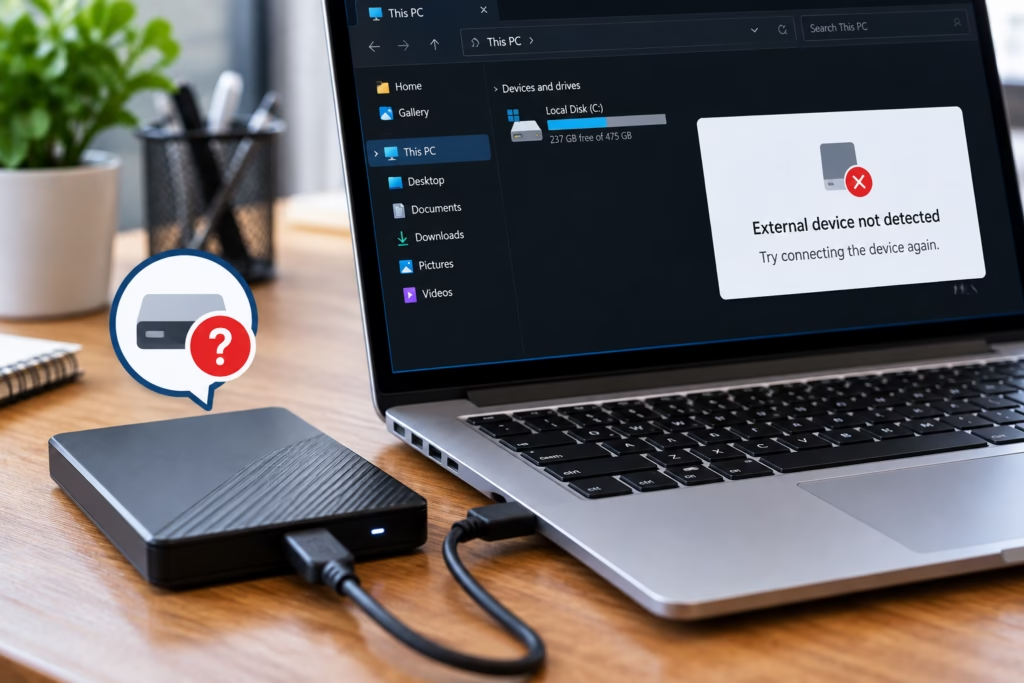
An external hard drive that suddenly disappears from your computer can be alarming, especially when it contains important photos, work files, backups, or business documents. Sometimes the problem is as simple as a loose cable or faulty USB port. In other cases, the drive may have a damaged enclosure, corrupted file system, failing hardware, or another issue that prevents the computer from recognizing it properly.
If your external drive is not showing up, the most important thing is to avoid making unnecessary changes before you understand what happened. Steve’s Computers provides professional data recovery in San Antonio for external hard drives and other storage devices that are no longer detected or accessible.
Why Is My External Hard Drive Not Showing Up?
An external drive depends on several things working together before your computer can access the files stored on it.
The drive itself must be functioning, the USB or data cable must be working, the computer port must provide a reliable connection, and the operating system must recognize the storage device and its file system.
A problem anywhere along that path can make the drive appear missing.
Common causes include:
- Damaged USB cables
- Faulty USB ports
- Insufficient power
- Failed external-drive enclosure
- File-system corruption
- Damaged partitions
- Drive-letter conflicts
- Hard drive or SSD failure
- Internal connection problems
- Physical damage after a drop or impact
The fact that a drive does not appear in File Explorer or Finder does not automatically mean the files are gone.
Start With the Simple Connection Checks
If the external drive was working normally and suddenly disappeared, basic connection checks can sometimes reveal the problem.
Make sure the cable is fully connected to both the drive and the computer. If the drive uses a removable USB cable, a damaged cable can prevent proper communication even when the drive itself is still healthy.
Trying another known-working USB port may also help determine whether the issue is with the computer rather than the storage device.
Some larger external hard drives use a separate power adapter. If the drive is not receiving enough power, it may not spin up or communicate with the computer correctly.
Keep these checks limited. Repeatedly reconnecting, unplugging, or power-cycling a drive that is making unusual noises or behaving unpredictably can make an existing hardware problem worse.
Check Whether the Computer Detects the Drive at All
There is a difference between a drive that is completely undetected and one that the computer detects but cannot open.
A drive may not appear in File Explorer or Finder but could still be recognized by the operating system at a lower level. That may point toward a partition, drive-letter, or file-system problem instead of complete hardware failure.
On Windows, a drive may appear in Disk Management even when it does not appear under “This PC.” On a Mac, a storage device may appear in Disk Utility even if it is not mounted normally.
If the drive appears but the computer asks you to initialize, format, or erase it, stop before agreeing if the files are important.
Formatting can overwrite file-system information and complicate data recovery.
Do Not Format a Drive Just Because the Computer Suggests It
One of the most common mistakes after an external hard drive becomes inaccessible is accepting a message that says the drive must be formatted before use.
Formatting may make the storage device usable again, but it can also alter information needed to locate existing files.
If your priority is recovering the data, avoid formatting, initializing, repartitioning, or installing anything onto the affected drive until the problem has been evaluated.
A healthy external drive with a damaged file system may still contain recoverable information even if Windows or macOS cannot currently open it.
Steve’s Computers can evaluate the drive and determine whether professional data recovery should be considered before repair or formatting.
Listen for Unusual Hard Drive Noises
Mechanical external hard drives contain moving components. When those components begin failing, the drive may produce sounds that were not present before.
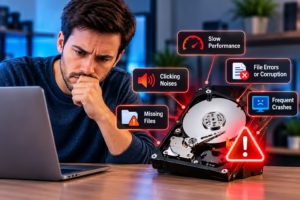
Repeated clicking, grinding, beeping, or unusual spin-up and spin-down behavior can indicate a physical problem.
If your external hard disk started making abnormal noises at the same time it stopped being detected, avoid repeatedly powering it on.
Physical hard drive failure is different from a simple corrupted partition or missing drive letter. Continuing to run a mechanically damaged drive can increase the risk of additional damage.
Solid-state external drives do not contain the same moving parts, so they usually fail without these mechanical warning sounds.
Could the External Enclosure Be the Problem?
An external hard drive includes more than the storage device itself.
Many units contain an internal SATA hard drive or SSD connected to a small controller board inside the external enclosure. That controller allows the drive to communicate through USB.
If the enclosure electronics fail, the computer may stop detecting the external drive even though the storage device inside is still functional.
The USB connector itself can also become damaged after repeated plugging and unplugging, impact, or cable strain.
A technician can determine whether the problem is with the actual storage media or the hardware surrounding it.
What If the External Drive Was Dropped?
A dropped external hard drive should be treated carefully, especially if it is a mechanical HDD.
Even if the outside case looks fine, an impact can affect internal components. A drive that becomes undetectable immediately after being dropped may have suffered physical damage.
Avoid opening the hard drive itself. The internal components of a mechanical drive require specialized handling, and exposing them outside the proper environment can reduce the chances of successful recovery.
If the drive contains important information, stop using it and have it professionally evaluated.
Can Files Still Be Recovered From an Undetected External Drive?
Possibly.
Whether data can be recovered depends on why the external drive is not detected.
Logical problems such as damaged partitions, accidental formatting, or file-system corruption may present different recovery options from controller failure, damaged NAND flash, or mechanical hard-drive failure.
The condition of the drive also matters. A stable drive that is still communicating with the computer presents a different situation from one that clicks, repeatedly disconnects, or will not power on.
No responsible data recovery process should guarantee that every file can be restored. The drive needs to be evaluated first.
Avoid Running Recovery Software on an Unstable Drive
Data recovery software can sometimes help with logical file loss, but it is not appropriate for every situation.
If an external hard drive is disconnecting, clicking, freezing the computer, or disappearing during use, repeatedly scanning it with recovery software may place additional stress on failing hardware.
Installing recovered files back onto the same affected drive can also overwrite information you are trying to recover.
When important files are involved, diagnosis should come before aggressive recovery attempts.
Could the Computer Be the Problem Instead?
Sometimes the external drive is healthy and the computer is causing the connection problem.
USB ports, drivers, power settings, motherboard connections, or operating-system issues can interfere with external storage.
If multiple external drives or USB devices are behaving incorrectly on the same computer, the system itself may need attention.
Steve’s Computers also provides computer repair in San Antonio when storage connection problems are related to the computer rather than the drive.
When Should You Bring the Drive in for Data Recovery?
Consider professional evaluation if the drive contains important files and:
- It is no longer detected
- It repeatedly connects and disconnects
- It asks to be formatted
- It shows as unallocated or unreadable
- It makes unusual mechanical noises
- It stopped working after a drop
- Important folders or files suddenly disappeared
- Recovery software cannot access it reliably
The sooner you stop unnecessary use of a failing drive, the better chance you have of avoiding additional damage.
Get External Hard Drive Data Recovery in San Antonio
If your external hard drive is not detected, does not appear on your computer, or contains files you can no longer access, Steve’s Computers can help determine what happened.
Steve’s Computers provides data recovery in San Antonio for external hard drives, SSDs, and other storage problems. The drive can be evaluated to determine whether the issue involves the connection, enclosure, file system, storage hardware, or another component.
If the files are important, avoid formatting or repeatedly testing an unstable drive. Walk-ins are welcome, or call (210) 241-2054 to discuss your external hard drive problem.