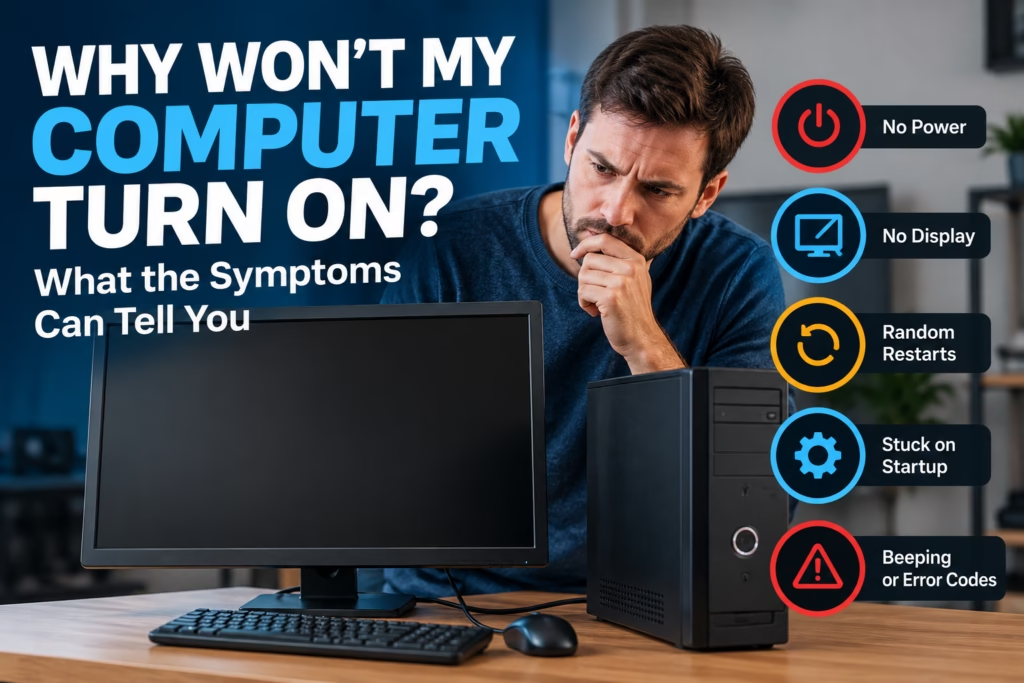
A computer that will not turn on can mean different things depending on what happens when you press the power button. A completely dead system points toward different causes than a computer with lights and fans but no picture, or one that reaches the logo screen and then stops.
Steve’s Computers provides computer repair in San Antonio for desktops and laptops with power, startup, display, storage, and hardware problems. Serving San Antonio since 2008, Steve’s Computers uses a diagnostic-first approach so the repair is based on the actual failure.
What Does “Won’t Turn On” Actually Mean?
Customers often use “won’t turn on” to describe several symptoms. For diagnosis, the distinction matters.
A computer may have no power at all. It may power on but show a black screen. It may start its initial hardware checks but fail to load Windows or another operating system. It may also turn on briefly and shut back off.
These patterns can point toward different components. Lights, sounds, screen behavior, and how far startup gets can provide useful clues.
No Lights, No Fans, and No Response
If pressing the power button produces no lights, fan movement, or sound, the computer may not be receiving usable power.
For a desktop, possible causes include the outlet, surge protector, power cable, power supply, case power button, motherboard, or another electrical fault. For a laptop, the charger, battery, charging connection, power circuitry, or motherboard may be involved.
Confirm that the outlet and power connection are working. If the computer still shows no response, avoid testing damaged connectors or a system that smells burnt or has visible electrical damage.
Steve’s Computers can perform computer diagnostics in San Antonio to determine where power is failing.
Lights and Fans Turn On, but the Screen Stays Black
A computer with lights or fan activity is receiving at least some power. That does not mean the system is completing startup.
A black screen can involve the monitor, display cable, graphics, memory, motherboard, or another component. On a laptop, the built-in display or internal display connection may also be responsible.
This is often described as “no video” or “no display.” It differs from a completely dead computer because the system shows activity.
If an external monitor works while a laptop screen stays black, that can help narrow the problem. If no display works, additional testing may be needed.
The Computer Powers On, Then Shuts Off
A computer that starts for a few seconds and then shuts down can have a power, cooling, memory, motherboard, or other hardware problem.
Desktop systems may shut off when the power supply cannot provide stable output. A short circuit, overheating condition, or motherboard fault can also interrupt startup. On laptops, battery, charging, and board-level power issues can create similar symptoms.
Timing matters. A system that shuts off instantly may have a different problem from one that runs for several minutes.
If shutdowns come with unusual heat, burning smells, sparking, or a swollen laptop battery, stop using the device and have it inspected.
The Computer Turns On but Will Not Boot
If the computer reaches a manufacturer logo, startup screen, or BIOS/UEFI screen but Windows does not load, the problem may be further along in startup.
Storage failure, corrupted system files, boot configuration issues, or an SSD or hard drive that is no longer detected can prevent normal loading.
This is usually considered a “no boot” problem rather than a “no power” problem.
If important files are stored on the computer, avoid reinstalling, formatting, or resetting the system before the storage device is evaluated. Steve’s Computers provides data recovery in San Antonio when a failing or inaccessible drive puts important files at risk.
Beeping, Blinking Lights, or Error Codes
Some computers provide clues through beep patterns, blinking LEDs, or error messages.
These signals can indicate memory, graphics, processor, or motherboard problems, but meanings vary by model. A beep pattern on one computer should not be assumed to mean the same thing on another.
If you notice a repeating pattern, write it down before bringing the computer in. The sequence can help when combined with the model and other symptoms.
Hardware testing is still important because different faults can produce similar behavior.
Could RAM Stop a Computer From Starting?
Yes. Faulty, incompatible, or poorly connected memory can prevent a computer from completing its initial hardware checks.
You may see lights and fans with no usable display, repeated restarts, beep codes, or a system that turns on but never reaches the operating system.
Memory problems can resemble motherboard or graphics failures, which is why replacing a motherboard based only on a black screen can be an expensive mistake.
Steve’s Computers checks relevant components before recommending major hardware replacement.
Could the SSD or Hard Drive Be the Cause?
A failed storage drive usually does not prevent every sign of power, but it can stop the computer from loading the operating system.
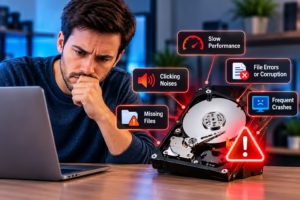
Symptoms may include a missing boot device, automatic repair loops, very slow startup, repeated freezes, or messages indicating that no operating system was found.
Mechanical hard drives may click or grind when physically failing. SSDs can fail without those noises.
When a drive may be failing and the files matter, protecting the data should be part of the repair decision from the beginning.
What If the Computer Stopped Starting After an Update?
If the computer still powers on and reaches part of the startup process after an update, software may be involved.
A failed update, damaged driver, corrupted startup file, or incompatible software can leave a computer stuck in a restart loop or unable to reach the desktop.
However, timing alone does not prove the update caused the failure. Hardware problems can appear at the same time.
A diagnostic process separates software problems from failing storage, memory, power, and other hardware before major changes are made.
What Should You Check Before Bringing the Computer In?
You can safely note the symptoms without taking the computer apart.
Check whether the outlet works, whether the power cable or charger is firmly connected, and whether the computer shows lights, fan activity, sounds, or error messages. Disconnect unnecessary external devices if they appear related.
Also note what happened before the failure. A power outage, spill, drop, update, overheating episode, or unusual noise can provide useful context.
Avoid opening the power supply, forcing damaged connectors, or repeatedly trying to start a computer that shows signs of electrical or liquid damage.
Get Computer Repair in San Antonio
A computer that will not turn on does not automatically need a motherboard, power supply, or replacement system. The symptoms should be separated into no power, no display, no POST, no boot, or unexpected shutdown before the right repair can be identified.
Steve’s Computers provides computer repair in San Antonio for desktops and laptops with startup and power problems. The goal is to identify the failed component, explain options clearly, and avoid replacing parts that still work.
If your computer will not start, contact Steve’s Computers to schedule an evaluation or bring the system in for diagnosis. You can also call (210) 241-2054 to discuss the symptoms before your visit.