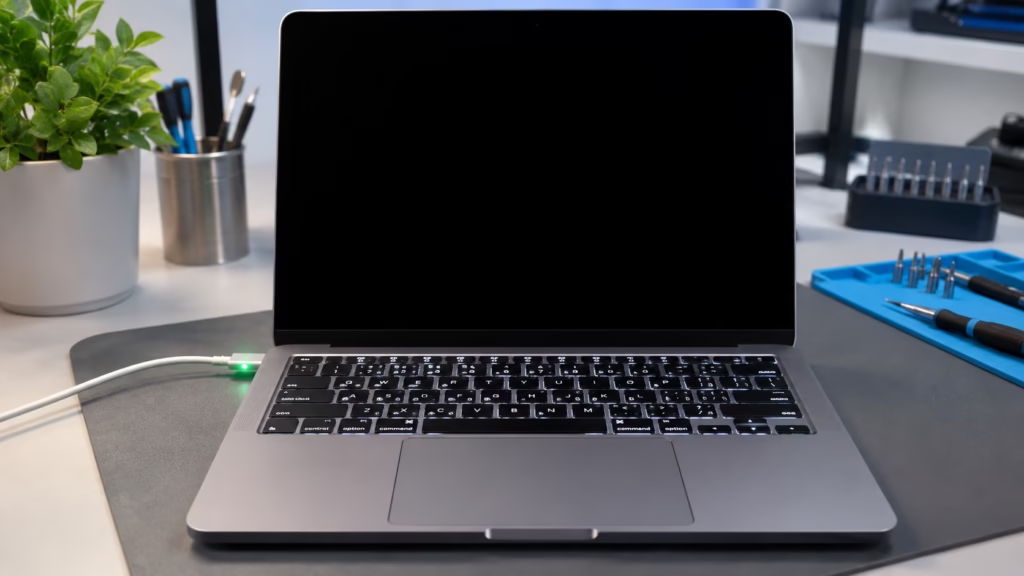
Your Mac powers on. You may hear the startup sound, feel the trackpad click, or notice the keyboard backlight, yet the display stays completely black. That can be confusing because the computer appears to be running even though you cannot see anything on the screen.
A black screen does not automatically mean the Mac is dead or that the display must be replaced. The cause can involve brightness settings, a display connection, the screen assembly, graphics hardware, power management, software, or another internal component. The useful first step is to pay attention to what the Mac is doing behind the black display.
Start With the Signs That the Mac Is Actually Running
If the Mac is making startup sounds, the fan is spinning, the keyboard backlight comes on, or an external device receives power, the computer may be booting even though the built-in display is not showing an image. Those details matter because they separate a display problem from a Mac that is not completing startup at all.
Try listening for notifications, checking whether Caps Lock responds, or seeing whether the machine appears on a network. None of these tests proves exactly what failed, but they can help show whether the operating system is running in the background.
Brightness and Display Settings Can Create a False Black Screen
Sometimes the display is working but the brightness has been turned all the way down. On some Mac models, a software setting or sleep-related glitch can also leave the screen looking black until the display state is reset.
Adjust the brightness controls and give the Mac a moment to wake fully. If the screen briefly lights, shows a faint image, or behaves differently after sleep and restart, that information is useful during diagnosis. A consistently black display despite an otherwise active system points toward a deeper display or hardware issue.
A Faint Image Can Point Toward Backlight Trouble
A Mac display is made up of several systems. The LCD or panel creates the image, while the backlight makes that image visible. If the backlight circuit or related display hardware fails, the screen can appear black even though a very faint image is still present.
Shining a light at an angle may sometimes reveal a dim desktop or login screen. If you can see a faint image, that suggests the computer may be producing video but the display is not being illuminated correctly. The repair could involve the display assembly, backlight circuitry, cable, or board-level components depending on the model.
Display Cables and Hinges Can Affect the Image
MacBook displays connect to the logic board through internal cables that route through or near the hinge area. Repeated opening and closing, impact, previous repair, or structural damage can affect those connections.
A screen that goes black at certain lid angles, flickers when the display moves, or briefly works when the lid is repositioned deserves attention. Continuing to force the hinge or repeatedly flex the display can worsen an existing cable or connector problem.
An External Monitor Can Help Separate the Problem
Connecting the Mac to a known-good external display can be useful when the computer appears to be running. If the external monitor shows a normal desktop while the built-in screen stays black, the problem is more likely to be within the internal display path.
If neither the built-in screen nor an external display shows an image, the issue may involve startup, graphics, logic-board hardware, or software. External display testing is only one clue, but it can help narrow the direction before parts are replaced.
Software and Startup Problems Can Look Like Display Failure
Not every black screen is caused by broken display hardware. macOS startup problems, damaged system files, login-item conflicts, or software glitches can leave the Mac stuck before the desktop appears. A black screen that follows an update or system change should therefore be evaluated differently from one that began after a drop.
Safe Mode, Recovery, or other startup tests may help separate software from hardware, but repeated forced shutdowns are not ideal if important files are involved. If the Mac behaves unpredictably, diagnosis should come before aggressive troubleshooting.
Power and Logic-Board Problems Can Also Cause a Black Screen
Some Macs power on partially even when the logic board is not completing normal startup. Power-management faults, graphics-related problems, damaged components, or liquid exposure can produce a machine that seems alive but never presents a usable image.
Liquid damage is particularly important because corrosion can affect display, power, or board connections long after the original spill. If the black screen started after liquid exposure, tell Steve’s Computers even if the Mac continued working for a while afterward.
Do Not Assume the Screen Needs Replacement
Replacing the display without confirming the cause can be expensive and may not solve the problem. A black screen can come from the panel, backlight, cable, connector, logic board, software, or another part of the startup path.
Steve’s Computers approaches the problem by looking at the symptoms together. The goal is to determine whether the Mac is actually booting, whether video is being generated, whether an external display works, and whether the built-in display hardware is receiving the signals and power it needs.
Protect Important Files Before Repeated Testing
If the Mac contains important documents, photos, or work files, data should be part of the repair decision from the beginning. A display problem may leave the files completely intact, but a Mac that is also having startup or storage problems needs more caution.
Repeated resets, reinstalls, or storage changes should not be the first move when data is the priority. If the computer eventually stops starting or the storage device is not being recognized, recovery options can become more complicated.
How Steve’s Computers Diagnoses a Mac With a Black Screen
Steve’s Computers can evaluate the Mac’s startup behavior, built-in display, external video output, charging and power condition, display connections, and related hardware to determine where the failure is occurring.
For professional Mac repair in San Antonio, Steve’s Computers can inspect the system before recommending a screen, cable, logic-board, or software repair. If the failure is difficult to reproduce, computer diagnostics can help identify whether the problem is display-related or part of a broader startup issue.
When Data Recovery Becomes Part of the Repair
If the Mac turns on but important files are inaccessible, or if the computer also has storage errors, tell Steve’s Computers that the data is the priority. Data recovery support can be considered before repair steps that may change the storage device or operating system.
A black display by itself does not mean the files are gone. In many cases the storage device and data remain intact even when the built-in screen is not working. The key is avoiding unnecessary changes until the startup and storage condition are understood.
Get Mac Black-Screen Repair in San Antonio
If your Mac turns on but the screen stays black, do not assume the entire computer needs replacement. Contact Steve’s Computers for an evaluation. Steve’s Computers can check the display, backlight, cables, external video output, startup behavior, power system, and related hardware so the repair recommendation is based on the actual failure.