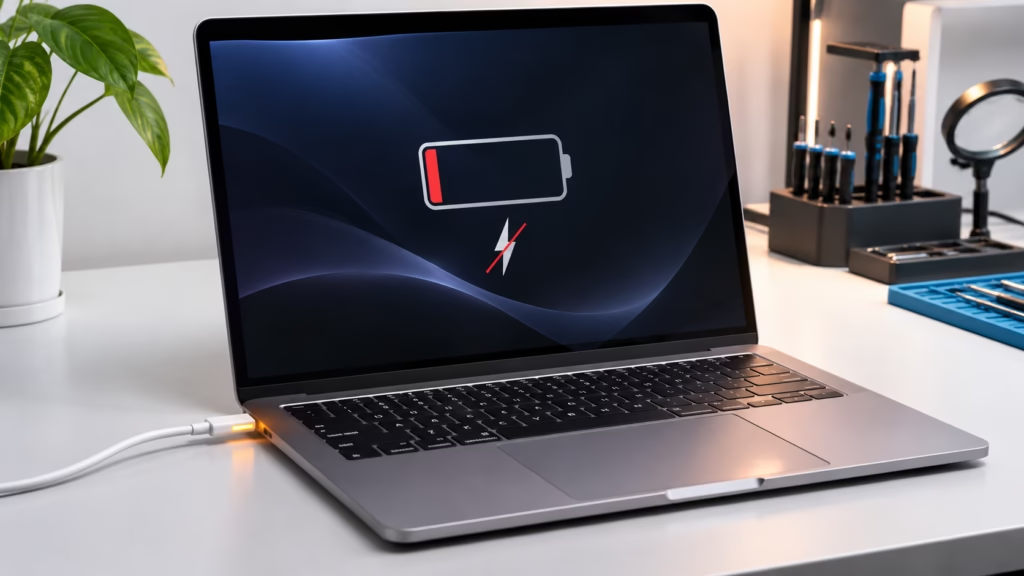
A MacBook can be connected to power and still refuse to charge, charge only intermittently, or stay stuck at the same battery percentage. That does not automatically mean the battery has failed. The adapter, cable, charging port, power-delivery negotiation, battery condition, temperature, software, and internal charging hardware all play a role.
The useful first step is to look at what the Mac is actually doing. Is it running from the adapter but not increasing the battery percentage? Does the battery icon show that power is connected? Does charging work only when the cable is moved? Does one USB-C port behave differently from another? Those details help distinguish a simple accessory problem from a battery or internal hardware issue.
The Charger Has to Deliver the Right Power
Modern Mac notebooks use power adapters and cables that must support the wattage and charging standard expected by the computer. A low-power adapter may keep a Mac running during light use but fail to charge it effectively under load. A damaged cable may also work intermittently or fail to carry power reliably.
Testing with a known-good compatible adapter and cable is useful because it isolates the computer from the accessory. If multiple known-good chargers behave the same way, the Mac itself deserves closer attention.
USB-C and MagSafe Connections Can Fail in Different Ways
Charging ports take repeated mechanical stress. Debris, worn connectors, liquid exposure, impact, damaged cables, or internal connection problems can interrupt charging even when the plug appears to fit normally.
On USB-C MacBooks, one port may behave differently from another depending on the model and the nature of the fault. With MagSafe systems, the connector, adapter, and charging circuitry each remain part of the diagnostic path. A port problem should be confirmed before the battery is blamed.
Battery Condition Still Matters
Lithium-ion batteries lose capacity as they age. A worn battery may drain quickly, shut down unexpectedly, or behave differently at certain charge levels. A severely degraded or swollen battery can also create safety concerns and may need service even if the Mac still powers on.
Steve’s Computers provides Mac repair in San Antonio for charging, battery, startup, and power-related problems. The battery can be evaluated in context with the charger and the rest of the charging system rather than replaced automatically.
Temperature and macOS Can Affect Charging Behavior
MacBooks manage charging based on temperature and battery conditions. Charging may pause or behave differently when the computer is too hot, and macOS battery-health features can intentionally delay charging to reduce long-term battery wear. That means a battery sitting below 100 percent is not always a failure.
The difference is consistency. A healthy charging-management feature behaves predictably. A Mac that repeatedly loses power, refuses to charge across multiple adapters, or only charges at certain cable angles is showing a problem that deserves diagnosis.
Internal Power Hardware Can Mimic a Bad Battery
Charging involves more than the battery itself. Power-management circuitry, board-level components, connectors, and internal cables can all affect whether power reaches the battery and the system correctly. Liquid damage is another possibility because corrosion can interfere with power delivery long after the original spill.
When symptoms are inconsistent, Steve’s Computers can use computer diagnostics to help determine whether the fault is in the accessory, battery, port, software, or internal hardware. This avoids replacing a battery that is not actually causing the charging failure.
What to Do Before the Mac Stops Starting
If the Mac still works, confirm that important files are backed up. Power problems can become worse, and a computer that eventually stops starting may make data access more complicated.
If the Mac already has startup problems or important files are becoming inaccessible, discuss the data first. Steve’s Computers also provides data recovery support when storage access becomes part of the repair decision.
Avoid Forcing a Damaged Connection
If the charger only works when held at an angle, do not keep forcing the connector. Repeated pressure can worsen damage to the port, cable, or surrounding hardware. Likewise, do not continue using a swollen battery or a charger that is overheating, damaged, or sparking.
A charging problem that appears minor can involve several parts of the system. Treating the symptom carefully gives you a better chance of avoiding additional damage.
Battery Health and Battery Percentage Are Not the Same Thing
A MacBook can report a reasonable charge percentage while the battery itself is worn. Capacity describes how much energy the battery can hold compared with when it was new, while the percentage icon only shows how much of the current capacity is available at that moment. A degraded battery can therefore show 80 percent and still provide much less runtime than expected.
Battery-health information in macOS can be useful, but it is only one part of the diagnosis. Unexpected shutdowns, swelling, rapid drain, inconsistent charging, and behavior that changes with the adapter connected are all relevant.
Charging While Using the Mac Can Hide the Real Problem
Heavy workloads consume more power. If the adapter or cable cannot supply enough power for the computer’s current workload, the Mac may charge very slowly or the battery percentage may continue to fall even though the power symbol shows a charger is connected.
This is especially important when using docks, external displays, or USB-C accessories. Some docks pass power through to the Mac, but the available wattage may be lower than the original adapter provides. Testing the Mac directly with a compatible charger helps separate a dock or accessory issue from a problem inside the computer.
Liquid Exposure Can Cause Delayed Charging Problems
A spill does not always stop a Mac immediately. Liquid can reach the charging ports or internal power circuitry and create corrosion that becomes more noticeable days or weeks later. Intermittent charging, ports that work only sometimes, and unusual heat can all appear after the computer seemed to survive the original incident.
If charging trouble follows liquid exposure, tell Steve’s Computers about the spill even if it happened earlier. That history can change what should be inspected first.
Battery Charging Is a System, Not a Single Part
The MacBook battery, adapter, cable, port, charging controller, and macOS all work together. That is why replacing one part based on the battery icon alone can miss the real fault. A diagnosis should confirm whether the Mac sees the adapter correctly, whether the battery accepts charge, and whether charging behavior changes under load.
Looking at the whole charging path is especially important on newer USB-C systems, where the same port may handle charging, displays, storage, and docks. One symptom can involve several layers of hardware and software.
Get Mac Charging Problems Checked in San Antonio
If your MacBook is plugged in but not charging, loses power while connected, or charges only intermittently, contact Steve’s Computers for an evaluation. Steve’s Computers can inspect the charger, cable, battery, charging connection, software behavior, and internal power system so the recommended repair is based on the actual cause.